Patent Drawing Service: AI Tool or Patent Illustrator?
Compare a self-service AI patent drawing tool with a human patent illustrator. Check the workflow, preview limits, exports and questions to ask before paying.
Choose who will prepare and review the patent figures
A patent drawing service can mean a commissioned illustrator or a tool you operate yourself. CNIPA.AI is a self-service AI drafting tool: you supply the invention description, review the figure plan and assess the resulting drafts. Human illustration, attorney review and a guaranteed delivery deadline are not included.
| Decision | CNIPA.AI self-service | When commissioning an illustrator |
|---|---|---|
| Source and figure plan | You provide the disclosure and review the proposed plan. | Agree who selects views and resolves ambiguous source material. |
| Corrections | You identify defects and manage revisions in the workspace. | Ask which correction rounds and cross-view checks the quote includes. |
| Deliverables | Draft figures; full DOCX/ZIP exports require applicable access or purchase. | Specify final sheets, image formats and any editable source files in writing. |
| Acceptance | You check technical accuracy and arrange the required professional review. | Confirm who checks office requirements and who approves the final set. |
If the assignment requires a complete US design view set, detailed CAD reconstruction or a named person accountable for delivery, confirm that capability before choosing a provider. A similar-looking portfolio image does not establish that those services are included.
How the self-service drawing workflow works
- Prepare the source. Gather the technical description, component names and the relationships each figure should show. Separate confirmed details from questions.
- Create the project and review the plan. Sign in, choose a supported jurisdiction and drawing preferences, then check the proposed views against your disclosure.
- Inspect the first figure. Generate the restricted preview. Look for missing parts, invented features, incorrect connections and unreadable labels before deciding whether to continue.
- Review the complete set and exports. With the applicable access or purchase, generate the remaining figures and use DOCX/ZIP exports. Open the exported files and compare figure order, geometry and reference signs with your description.
The current standalone jurisdiction choices are CN, JP and KR. The workspace does not provide a dedicated US design filing workflow. Generation takes time and may fail; a draft image still needs a technical check.
What “first figure free” includes
The unpaid first-figure preview is watermarked and partly blurred. It lets you inspect the initial result, but is not an unrestricted filing image or unlimited free generation. The workspace handles recovery of an eligible failed first preview.
Remaining figures and full DOCX/ZIP exports require the applicable access or purchase. Check the current price and scope in the workspace and checkout flow. An export option does not by itself promise a CAD model, an illustrator’s editable source file or professional sign-off.
Review current pricing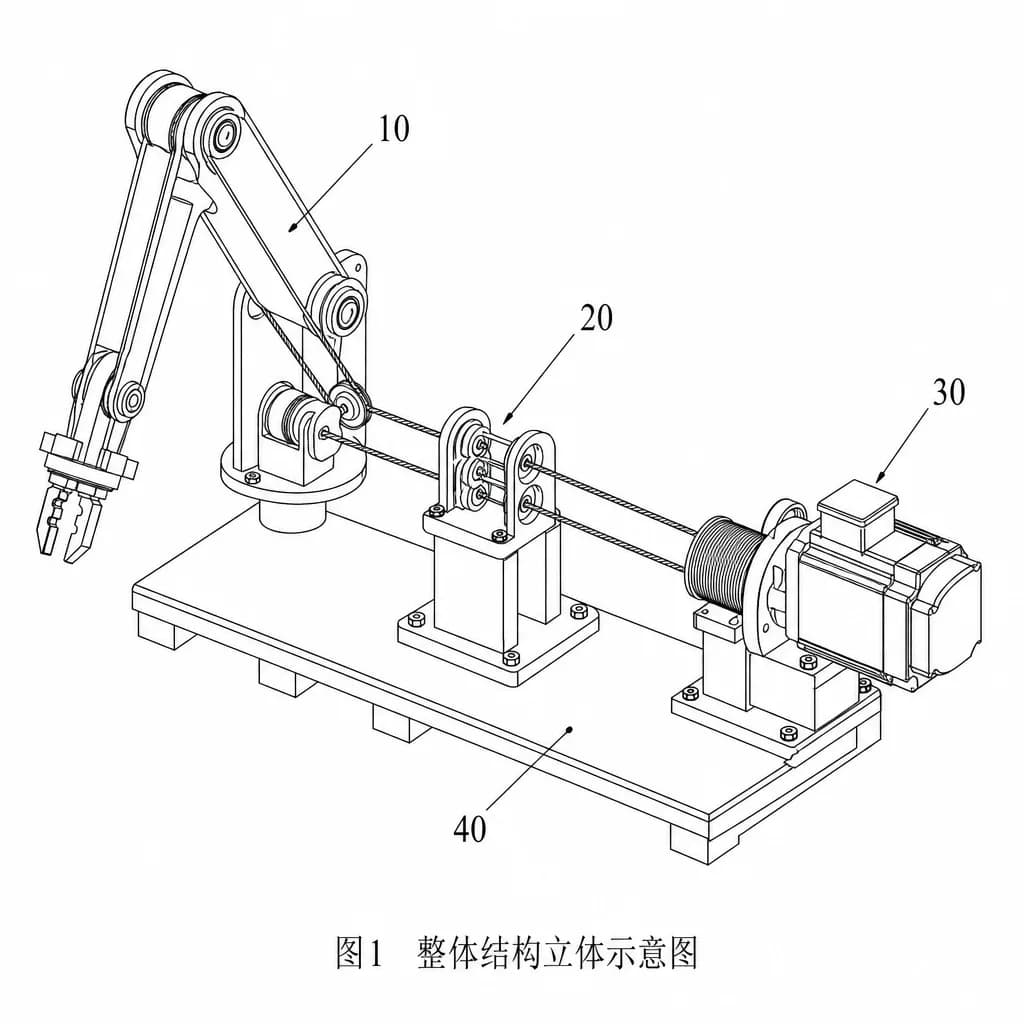
Questions to answer before purchasing drawing work
- Which figures are included, and what source revision will the work follow?
- Who resolves missing technical information and checks consistency across views?
- What revisions, output formats and editable files are included in the price?
- Who checks the intended patent office’s requirements and approves the set?
- How are your source files handled, retained and shared?
Use the detailed illustrator brief and service-selection checklist to document the answers. The drawing cost worksheet helps compare quotations for the same scope.